Thursday, January 13, 2011

Android 2.3 tips & tricks from Google

Google released the Nexus S smartphone a few weeks back which redefined the android smartphone space and is the first phone to carry pure Android 2.3 Gingerbread.
Here are a few tips and tricks from Google for the Android 2.3 Gingerbread mobile OS. Note that many of these tips will also work on Android 2.2, but some of them are specific to 2.3:

Tips
  • Visual cue for scrolling: When you are in a scrollable list (like your Gmail inbox) and you reach the end of the list it shows an orange hue—a visual cue that you can’t scroll anymore.
  • Notification bar icons (Wi-Fi, network coverage bars, etc.): Turn green when you have an uninhibited connection to Google, white when you don’t. Hint: if you’re in a hotel or airport using Wi-Fi, the bars won’t turn green until you launch the browser and get past the captive portal.
  • Voice actions: Tell your phone what to do by pressing the microphone icon next to the search box on the home screen, or long press the magnifying glass. You can tell it to send an email or text message (“send text to mom, see you for pizza at 7”), call someone (“call mom”), navigate somewhere (“navigate to pizza”), or listen to music (“listen to Mamma Mia”).
  • Find things you’ve downloaded from your browser: Your downloads are now neatly collected in a Downloads manager, which you can find in the apps drawer.
  • Turn a Gallery stack into a slideshow: In Gallery, when you are looking at a stack of photos, put two fingers on the stack and spread them. The stack spreads out and the pictures flow from one finger to the other, a moving slideshow that lets you see all of the photos.
  • Walk, don’t drive: Once you’ve gotten directions within Google Maps, click on the walking person icon to get walking directions.
  • Easy text copy/paste from a webpage: To copy/paste from a webpage, long press some text, drag the handles around to select the text you want to copy, and press somewhere in the highlighted region. To paste, simply long press a text entry box and select paste. Gmail is a bit different: you need to go to Menu > More > Select Text.
  • Turn your phone into a Wi-Fi hotspot: Go to Settings > Wireless & Networks > Tethering & Portable Hotspot. (You may have to pay extra for this feature.)
  • Look at Maps in 3D: With the latest release of Google Maps, you can now look at 3D maps. Tilt the map by sliding two fingers vertically up/down the screen, and rotate it by placing two fingers on the map and sliding in a circular motion, e.g., from 12 and 6 o’clock to 3 and 9.
  • Cool shutdown effect: When you put the phone to sleep, you’ll see an animation that resembles an old cathode tube TV turning off.
Keyboard tricks
  • Shift+Key to capitalize a word: In Gingerbread (and supported hardware), you can Shift+Key to capitalize a letter instead of going to a separate all caps keyboard.
  • Auto-complete: The space bar lights up when auto-complete can finish a word.
  • Quick replace: Tap on any previously typed word, then tap on a suggestion to automatically replace it with the suggested word.
  • Easy access to special characters (like numbers, punctuation): Press and hold any key to go to the special character keyboard. You can also press and hold the “,” key for an extensive punctuation keyboard.
Applications
  • Angry Birds: Popular game that lets you knock down blocks by slingshotting birds.
  • Astro: Awesome file explorer app. Browse and access the directories on your phone, and take full advantage of its capabilities. Great if you’re a power user.
  • Chrome to Phone: This one is really useful for Chrome users. You can send anything you browse on your computer to your phone. So if you are heading out to a restaurant or party and look up directions on your computer, just click the “send to phone” button (requires Chrome to Phone extension) and that exact page will open on your phone. Same with virtually any webpage.
  • Flash: Install from Android Market to watch Flash videos embedded throughout the web. Runs even better on Gingerbread.
  • Fruit Ninja: A juicy action game that tests your ability to smash flying fruit. A fun time-killer on the bus or train.
  • FXCamera: Popular photo sharing app with slick effects and filters.
  • Google Maps: Use your device as a GPS navigation system with free turn-by-turn voice guidance, and take advantage of other Google Maps features like Street View, Latitude and Places.
  • Instant Heart Rate: Measure your heart rate using your camera.
  • Phoneanlyzr: Track your phone usage: who you text most, call most, average call length distribution, etc.
  • RemoteDroid: Control your computer from your phone. Gives you a mobile wireless mouse and keyboard. Great if you’re using your computer for music or movies.
  • Shazam: Identifies virtually any song you are listening to.
  • SoundHound: Record a snippet of a song and get it identified instantly. You can even hum (if you can carry a tune!).
  • Tango: A free, high-quality video call app that works on both 3G and Wi-Fi. If your device has a front facing camera (e.g., Nexus S), you will love this app.
  • YouTube: New UI. Plus, portrait-mode player, and view comments and drop-down box video information
[From Google Blog]

Wednesday, January 12, 2011

Rename Admin account in Windows 7

Sometimes in the Computer/Laptop, Windows is installed already with default Username already set. For users who are not satisfied with this and need to change this can do this using Group Policy Editor. :
1. Open Run Dialog Box.
2. Open the Local Security Policy editor using “secpol.msc”.
3. Navigate to the tree Structure In the left pane, in Local Policies, expand it to Security Options.

4. In the right pane, there is a Policy, Accounts: Rename administrator account, Double click over it.
5. Change the name of Admin account to the one you wish to have now.
6. Close the Local Security Policy window, Log off to save the changes.


Sunday, January 9, 2011

Parental Controls in Windows 7

Parental controls in Windows 7 has lot of improvements and gives parents a lot of power to monitor restrict what their children do. Settings which can be maintained includes
  • Time Limits for a User
  • Game Restriction according to Game rating, content & Title.
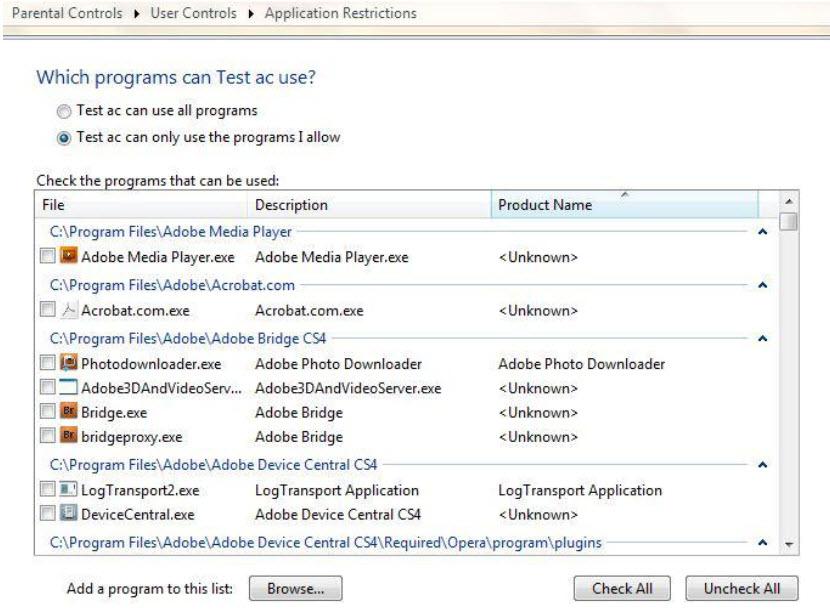
  • Allow or block specific Programs.
  • Web Filtering
Windows 7 Parental Controls is a feature in Windows 7 that can specify which PC games a particular user can play and which programs they can use. You can even specify the times when a particular user is allowed to use the PC. Here you can Control when a computer can be used by that particular account.
Windows Live Family Safety is a free download that works with Windows 7 and gives you tools to manage and monitor what a particular user do on the Web. For example, Web filtering and contact management help you manage whom a particular user can talk to on Windows Live Hotmail, Messenger and Spaces.
When you customize the settings for each of your children, you‟ll even get an activity report that informs you how your children have been using the PC and what Web sites they have visited. And with the ability to view reports or modify settings remotely, you can keep tabs on your kids no matter where you are. Parental controls help you manage what your children can do on your PC.
Games have ratings like
  • Early Childhood
  • Everyone
  • Everyone 10+
  • Teen
  • Mature
  • Adults only
These ratings are used to decide which games a particular user can play.
Also it can be decided which programs a User can use.
Although it won‟t make any much difference, for parents who have Geek Children. So as we say no donut for you this time for few parents.

Monday, January 3, 2011

New Autoplay Autorun options in Windows 7

Whenever an external device is plugged in Windows it showed an Autorun options for choosing what happens when you insert it.
It can be configured at Control Panel > Autoplay
 In order to help prevent malware from spreading using the Autorun mechanism, the Windows 7 engineering team made two important changes to the product:
Windows 7: Tips & Tricks
63 | P a g e
1. AutoPlay will no longer support the Autorun functionality for non-optical removable media. In other words, AutoPlay will still work for CD/DVDs but it will no longer work for USB drives.
 
 Before the change (left) after the change (right)
2. A dialog change was done to clarify that the program being executed is running from external media.
Before the change (left) after the change (right)
Some smart USB flash drives can pose as a CD/DVD drive instead of standard ones. In this specific scenario, the operating system will treat the USB drive as if it is a CD/DVD because the type of the device is determined at the hardware level.

Saturday, January 1, 2011

Find out How Healthy Your Battery is on Your Laptop

Windows 7 has a feature through which we can find out exactly how much battery you are actually getting from your Laptop battery, i.e. its efficiency, maximum charge potential.
It‟s a well-known fact that as the age of lithium battery increases its charging capacity decreases and it won‟t charge to its full potential as when it‟s new. We can find out exactly how much the battery of laptop is giving now. We can use the powercfg -energy to find out how health your battery is.
1. Open elevated command prompt by typing "cmd" in your start menu & opening it with administrator privileges.
2. Type “powercfg –energy” into the command prompt & press Enter.
3. The command enables tracing for 60 seconds & would collect all the data after observing the system behavior.
4. After analysis it would generate a report.
5. The energy report is generated in HTML format in the directory shown in the command prompt.
Cmd Prompt Address\energy-report.html by default.
6. In the HTML file, scroll to the end till you get information like this:


This shows the battery ID, Manufacturer name, Chemistry, Design capacity and most importantly the last full charge.
So as above screenshot my Dell Studio 15 battery has design capacity of 5200 and now it‟s giving max full charge of 3565 that counts its efficiency to around 70% it has degraded around 30% in 6 months.

Friday, December 31, 2010

Customize Windows 7 Power Button Action

The “Shut Down” button in Windows 7 can be customized with another action, if you use shut down action very rarely, but you more often restart it or put it on hibernate.
To change the action of shutdown button, Right click the Start Button, go to Properties and choose the „Power Boot Action” to do whatever you want, from the given options. It will give you a drop down list amongst following option to select from.
  • Switch user
  • Log off
  • Lock
  • Restart
  • Sleep
  • Hibernate
  • Shutdown

Now the button at Start Menu would change and perform the action as selected.


Wednesday, December 29, 2010

Free E-Reader Blio Announces September 28th Launch Date

The battle of the e-readers is about to get a new contestant. K-NFB just announced that their anticipated Blio e-reading program will launch on September 28th for Windows. Android and iOS systems (iPhone, iPad, etc) will follow soon thereafter. Blio has several key selling points. Downloading the reader itself is free, and K-NFB has promised that there will be a million free titles available at the time of launch. Blio is a full color reader and can fully preserve a book’s layout and format, allowing you to read it the same way it was printed or to restructure it for easier access on mobile devices. The e-reader supports note-taking, embedded multimedia, and allows you to freely move your titles from one device to another via a virtual library. It will feature text to speech technology from Nuance, the makers of the Dragon Dictation App we loved. Ray Kurzweil, founder of K-NFB, is wagering that Blio’s advantages will propel it into a fiercely competitive market that is already packed with e-readers.
As we’ve seen in our previous reviews of the technology (here and here), Blio certainly has enough bells and whistles to make it a success. Full color pages that turn in 3D and textbooks with embedded videos are both pretty impressive. However, in the battle of digital reading Amazon’s Kindle, Apple’s iBooks, and the Sony Reader have all been successful and are all (generally) based on their own hardware. Blio doesn’t have a dedicated hardware platform, and it’s unclear whether that will ultimately help or hinder it.
K-NFB has worked hard to secure support on the publishing side of their enterprise. They are partnered with Baker & Taylor, the world’s largest book distributor, and have secured more than 100 publishers to add titles to their library. Publishers include all the biggest names: Hachette, Harper Collins, Penguin, MacMillan, Random House, and Simon & Schuster. Yet the same names regularly make their titles available through the other e-readers as well. It will be interesting to see if publishers prefer the Blio platform because it can preserve their original formatting. No word yet on pricing agreements, which would be the other, and larger, consideration for securing publisher support.
Singularity Hub could be seen as biased towards Ray Kurzweil and his work, so I’m trying hard to come up with some fair and balanced criticisms for Blio. Certainly its late arrival to the e-reader race could be a negative, as could its lack of dedicated hardware. Textbooks won’t be available at first, and there is already strong competition there too, as we’ve recently seen.
But all of these are business considerations. When it comes to the platform itself I’m mostly positive. Blio is free, there will be a large library of free titles (Baker & Taylor have promised another 10,000 sometime after launch), and you can move your titles from device to device without paying. To me that means investing in the new reader when it comes out will be very low-risk. I still have questions about loading speeds, pricing & availability for pay-to-read titles, and usability. There’s no guarantee that Blio will be the next big e-reader…but I am very likely to try it out, especially once they make it available for iPhones.
[image credits: K-NFB]